
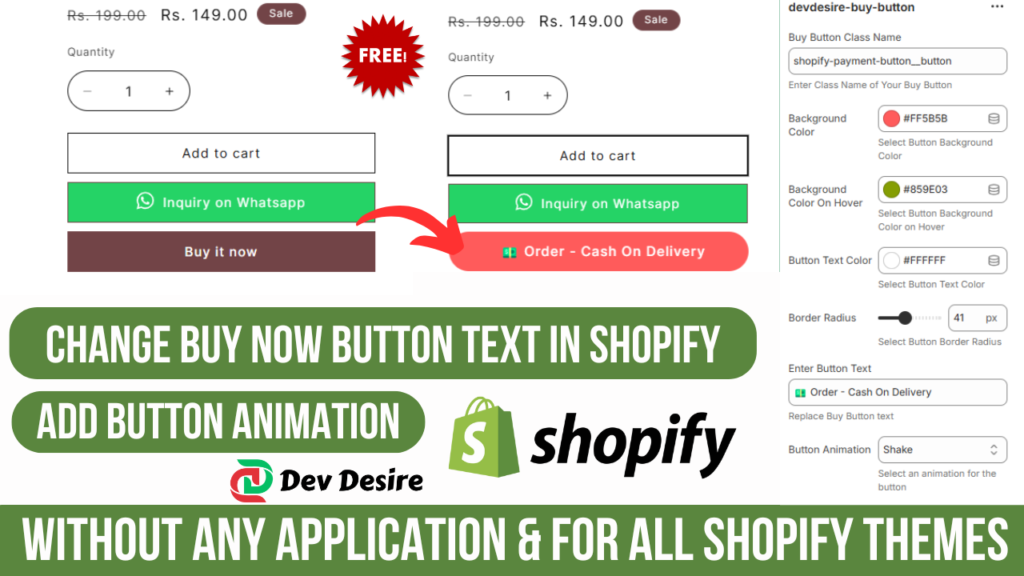
How to Change Buy Now Button Text in Shopify
Read more about How to Change Buy Now Button Text in Shopify in this section.
The ???Buy Now??? button plays a crucial role in guiding customers to make purchases on your Shopify store. Modifying its text can align it better with your brand or specific campaigns. This guide will show you Change Buy Now Button Text in Shopify using custom code and configurations.
Why Change the Buy Now Button Text in Shopify?
Customizing the ???Buy Now??? button text can help:
- Match your store???s tone and branding.
- Encourage urgency (e.g., ???Order Now???).
- Tailor messaging for promotions (e.g., ???Claim Your Discount???).
How to Change Buy Now Button Text in Shopify
Here???s a step-by-step guide to change the ???Buy Now??? button text in Shopify.
Step 1: Add the Custom Code
Insert the following code in your Shopify theme:
Step 2: Configure the Button in Shopify Theme Editor
- Navigate to Online Store > Themes.
- Click Customize for your active theme.
- Select the ???Devdesire Buy Button??? block or similar custom section.
- Update these settings:
- Buy Button Class Name: Assign a unique class for your button (e.g., buy-now-btn).
- Button Text: Input the desired replacement text, e.g., ???Get It Now.???
- Background and Text Colors: Adjust to suit your branding.
- Animation: Choose from effects like ???Shake,??? ???Bounce,??? or ???Pulse.???
Customizing Buy Now Button Text for SEO and User Experience
Note :- Different Slideshow Images for Mobile and Desktop ??? Watch Tutorial on Youtube
Key Benefits of Changing the Button Text
- Enhanced User Engagement: Personalized text grabs attention and improves click-through rates.
- Brand Consistency: Aligns the button with your store???s messaging.
- Higher Conversion Rates: Encourages immediate action.
Best Practices for Shopify Button Customization
- Preview Changes: Always test your updated button text on desktop and mobile.
- Optimize Animations: Use subtle effects like ???Pulse??? to avoid overwhelming users.
- Track Performance: Monitor your store???s analytics to see the impact of button text changes.
By following this guide, you can easily change the ???Buy Now??? button text in Shopify and tailor it to enhance your store???s performance. Always aim to balance creativity with usability for the best results!
Let us know in the comments if you have any questions or suggestions. 